Creating Workstations
Using this procedure, you will create the new workstation.
- Select Access Menu and then select Security | Workstations.
-
In the Workstations landing page, select Create Workstation.
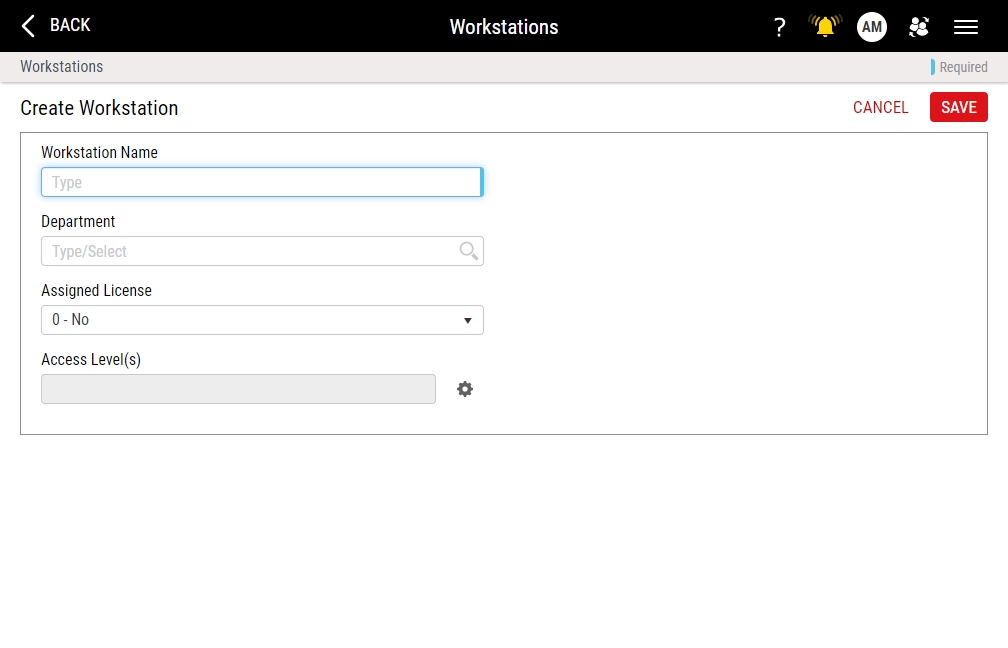
- In the Workstation Name data field, type the workstation name.
-
To designate in which department the workstation license resides, do the following:
- Locate the Department data field.
- In the Department drop-down list, select the desired department. Hint

For more information, please see Viewing License Report.
The Department data field is for recordkeeping purposes only.
-
In the Assigned License drop-down list, do the following:
- To grant a license to the user, select Yes.
- To deny a license from the user, select No.
For more information about licenses, please see Licenses.
-
In the Access Level(s) data field, you set what users on the workstation can see in Enact. To set the access level, do the following:
-
In the Access Level(s) data field, select Access Level(s).
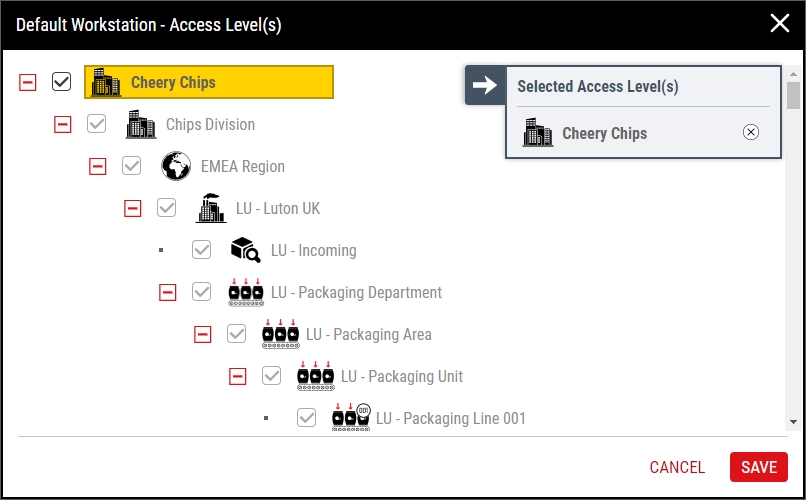
- In the Access Level(s) dialog box, select the processes that users on the workstation can see. If you check a top-level process, users on the workstation will also be able to see every process underneath that level.
- Select Save.
-
- Select Save.

