Descriptors
Parts
- Select Access Menu and then select Part | Parts.
-
In the Parts landing page, select Create Part.
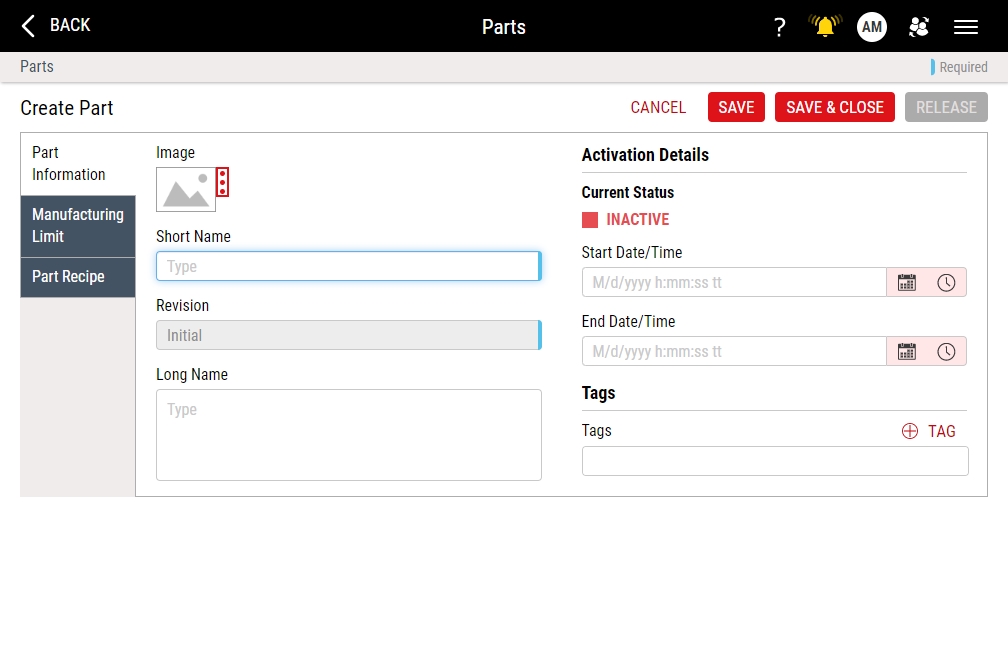
- In the Short Name data field, type Rim - C9 Mini.
- In the Image section, select More, select Upload Image, browse to Part-C9MiniRim.png, and then select Open.
- Select Save & Close.


Processes
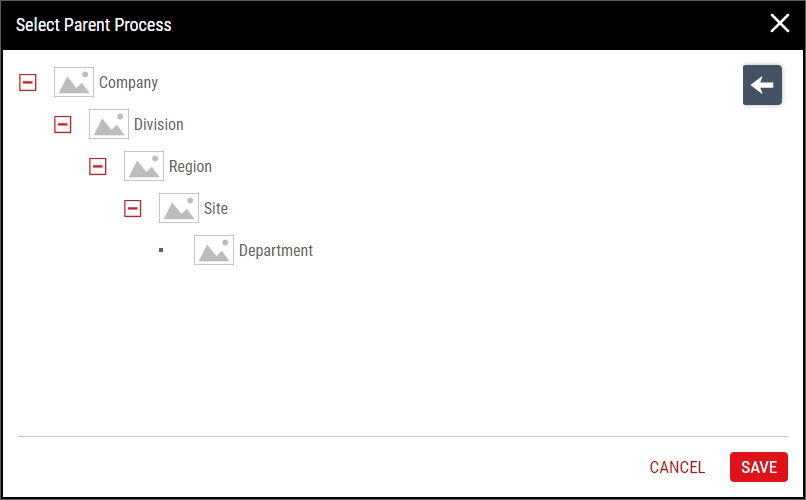
This Getting Started tutorial assumes an existing hierarchy design, which you may not have, and may not want, in your Enact system. The default Enact hierarchy looks like this:
This tutorial expects the following hierarchy:
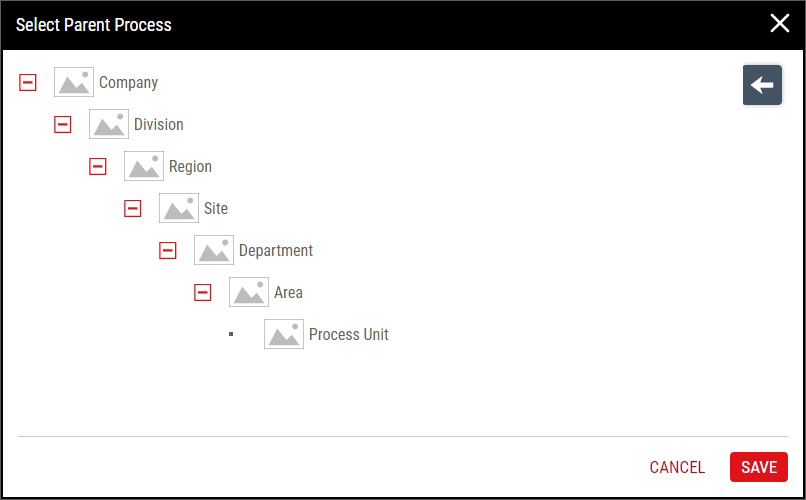
To match the expected hierarchy, please add Department under Site, and Area under Department, and Process Unit under Area. For more information, please see Creating Processes.
- Select Access Menu and then select Process | Processes.
-
In the Processes landing page, select Create Process.
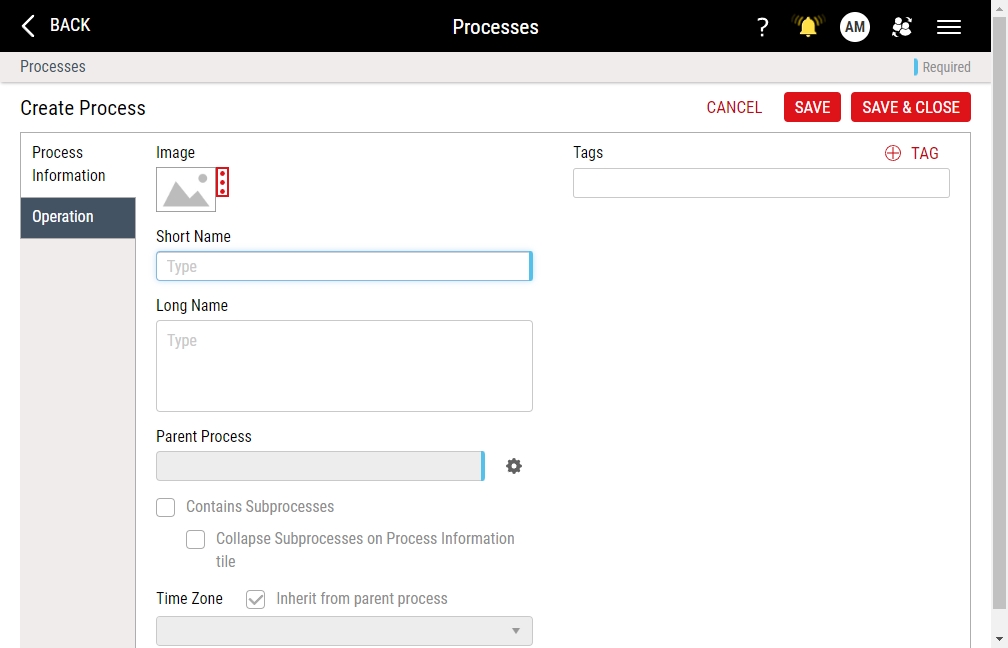
- In the Short Name data field, type Mold - RC9M-001.
- In the Image section, select More, select Upload Image, browse to Process-InjRimC9.png, and then select Open.
- In the Parent Process data field, select Parent Process, select Process Unit, and then select Save.
- Select Save & Close.

My Processes
- Select User Settings and then select My Processes.
- In the My Processes dialog box, select Mold - RC9M-001, and then select Save.

Code Groups
- Select Access Menu and then select Feature | Code Groups.
-
In the Code Groups landing page, select Create Code Group.
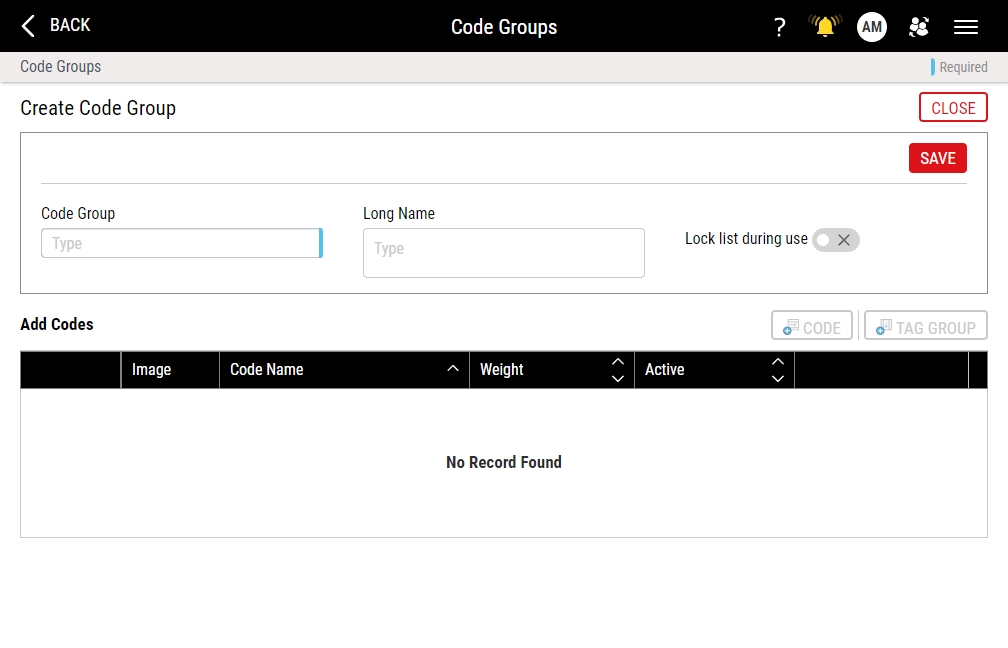
- In the Code Group data field, type Rim Defects, and then select Save.
- Select Code, and in the Code Name data field, type Burr, and then select Save & Create Another.
- In the Code Name data field, type Incorrect Spokes, and then select Save & Create Another.
- In the Code Name data field, type Scratch, and then select Save.
- Select Close.

Features
- Select Access Menu and then select Feature | Features.
-
In the Features landing page, select Create Feature.
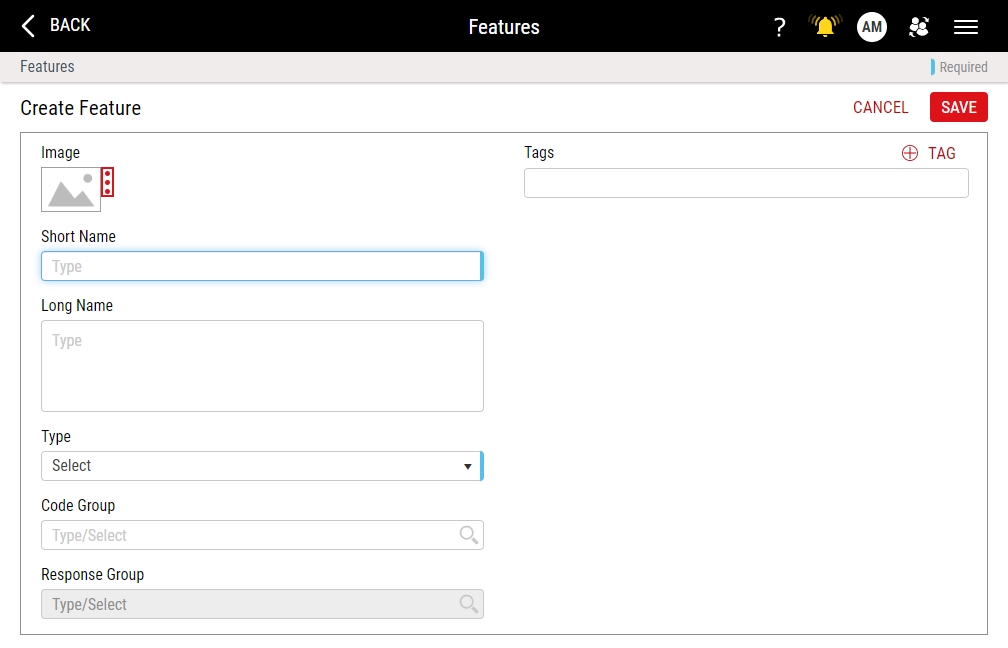
- In the Short Name data field, type Rim Inspection.
- In the Image section, select More, select Upload Image, browse to Feature-RimInspection.png, and then select Open.
- In the Type drop-down list, select Defect.
- In the Code Group drop-down list, select Rim Defects. Hint

- Select Save.

Next Step: Process Models