Viewing All Process State History
You can view the currently assigned process state for a process along with the changes made in the past. You can see the 8 most recent changes to the process states, in the Process States popup. The other records are accessible via View All History.
To view all the records of changes made to the process state:
- Select Access Menu and then select Process | Process States.
- In the Process States landing page, select Set Process State.
The Set State dialog box appears.
-
In the Set State dialog box, click View All History.
-
The Process State History dialog box appears displaying information such as Process States name, Time of change, Username of the user who made the change, and Email ID of the user who made the change.
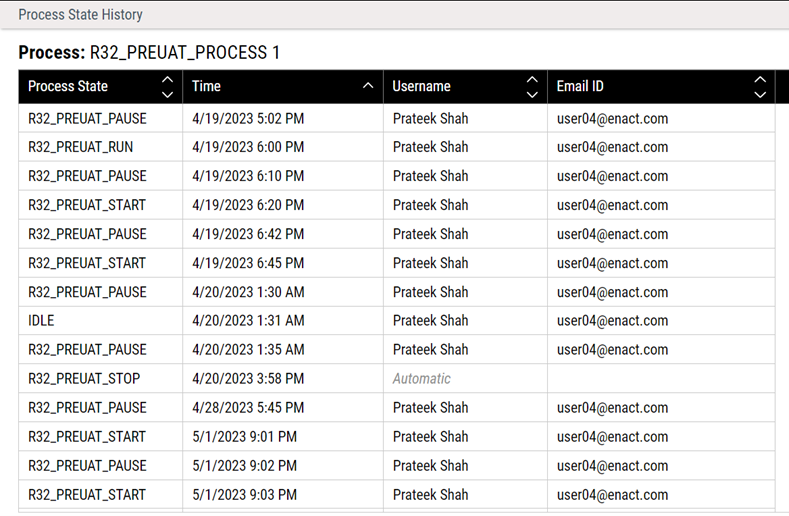
For automatic process changes, Automatic is displayed as the username and no email ID is displayed. For process state change associated with ADC, ADC Default is displayed as the username and no email ID is displayed.
You must save all the changes on the Set State dialog box, before navigating to the Process State History dialog box.
