Editing Language Labels (Dashboards)
Using this procedure, you will edit the existing localized versions of Dashboard data fields.
- Select Access Menu and then select Dashboard.
- In the toolbar, select Select Dashboard, select View All, and then select Language Label.
-
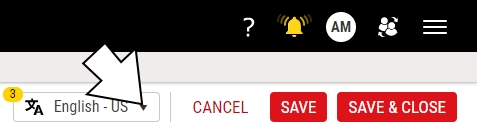
In the language drop-down list, select the desired language.
-
In the language label data fields, type the localized values.
In the upper left corner of the language data field, Enact displays a highlighted counter of the number of language labels you have created.
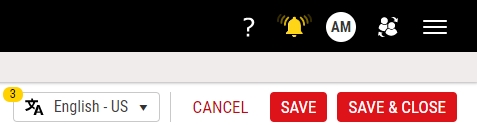
Also, in the drop-down list, Enact displays a check mark beside the languages with language labels.
- Select Save, or select Save & Close to save and close the page.


