Viewing Change Logs
Overview
You can view changes that impact data collection in the Data Collection Change Logs, so that you check and investigate any issues or irregularities in the processes from which you collect data. The logs will track changes to the following:
-
Data Collection configurations
-
Quick setup
-
Processes
-
Parts
-
Lots
-
Features
-
Subgroup label groups
-
Tag groups
-
Process models
-
Gauges
Using the change logs
To view the Data Collection Change Logs, follow the steps below:
-
In the menu, click on the Data Collection tab.
-
In the Data Collection tab, click on the Data Collection Configurations tab.
-
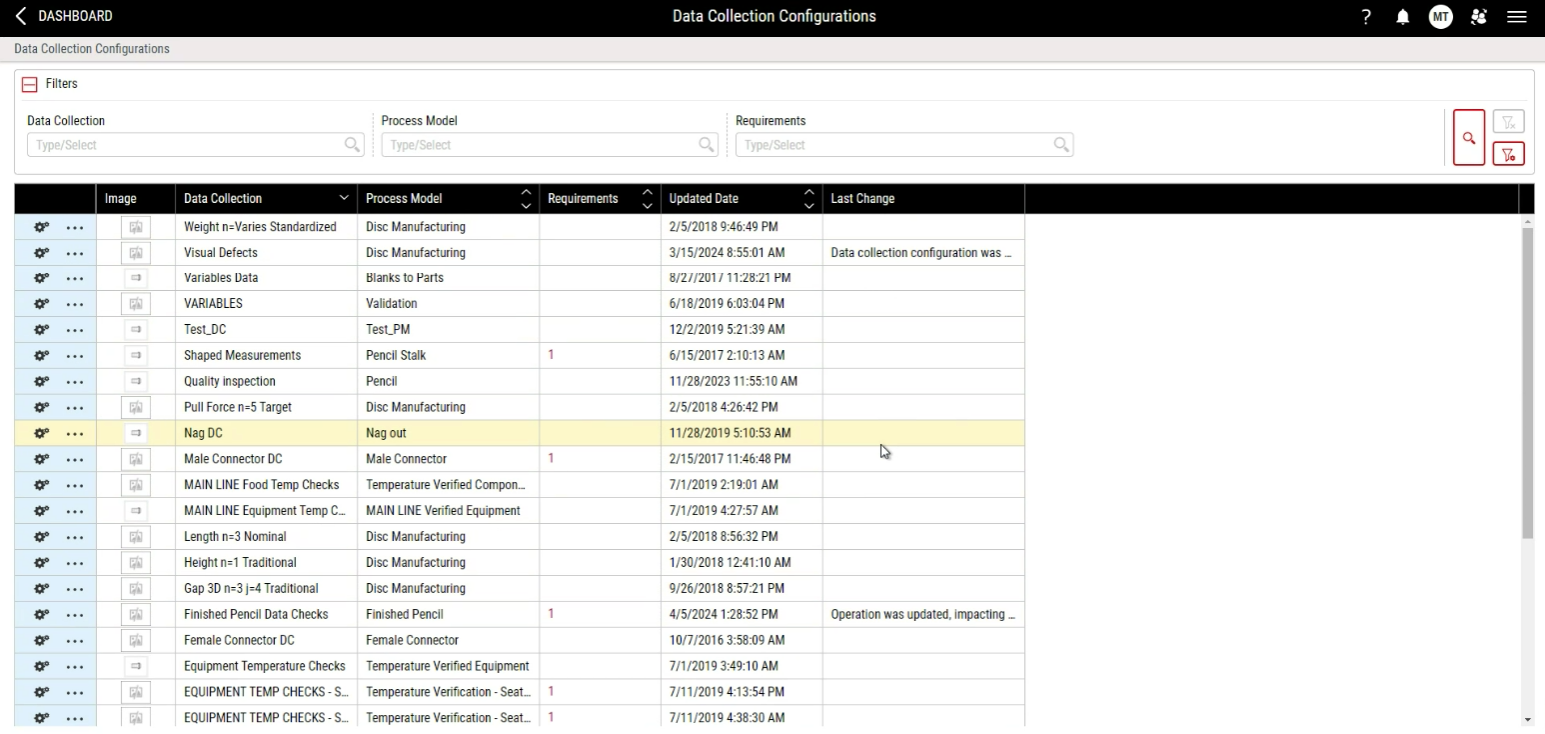
Select which process data collections you wish to view the log for.
-
You may use the Filters in the dropdown menu above the table to narrow down your results by Data Collection, Process Model and Requirements.
-
The change log data for the process selected will appear in the last two columns of the resulting table, along with the update date and time.
-
To view the complete change logs to a data collection, click the three dots in its first row. In the menu that pops up, click on View Change Logs.

-
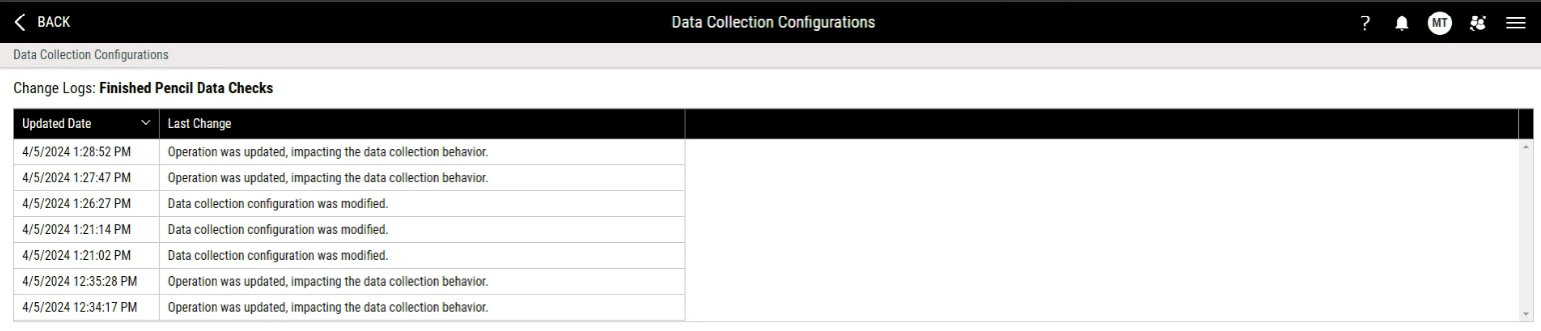
Once opened, the View Change Logs page will show all changes that impact data collection, along with their time.
In case you want to view a detailed history of changes other than to data collection, use the Change History.