Navigating Process Models
Using this procedure, you will navigate inside the process model.
- Select Access Menu and then select Data Collection | Process Models.
-
In the Process Models landing page, select Edit.

-
In the process model edit page, you can do the following:
-
 Expanding Linked Process Models
By expanding a linked process model, you can see further upstream or downstream in your in your series of operations.
-
In the input or output part family of collapsed process model, select Expand.

-
The collapsed process model expands.

-
-
Collapsing Linked Process Models
By collapsing process models, you can hide process models that are linked upstream as inputs or linked downstream as outputs. This allows you to focus on a single process model or a subset of process models for viewing ease.
-
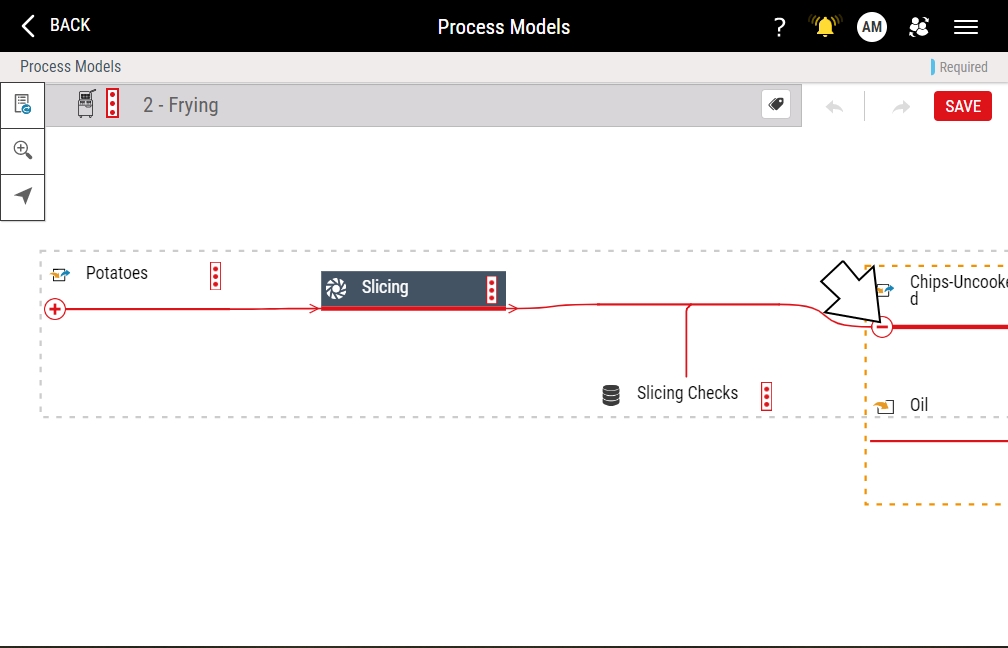
In the input or output part family of expanded process model, select Collapse.
-
The expanded process model collapses.
-
-
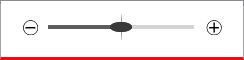
Zooming Process Models
Using the zoom function, you can magnify the process model, expanding its display to view sections of it more clearly.
-
Scrolling Process Models
When the process model is larger than the display screen, you can drag left or right in the navigator dialog box, scrolling through the process model.
- In the process model edit page, select Navigator.
-
In the navigator dialog box, select and drag the highlight area to the desired process model location to scroll the location, and then select anywhere on the process model to commit the change.
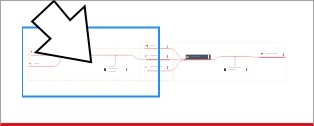
Alternatively, you can select and drag anywhere on the process model to scroll the location.
-